
Installation and activation
From this tour, you will learn all you need to know about installing and activating Melodyne. We begin with the basic procedure and the most important terms before outlining further options and details. From the separate tour “Updates and upgrades”, you can learn how updates and upgrades work and what you need to bear in mind when considering them.
Procedure and terminology
Serial number and Melodyne license: Your serial number is a multi-character string that corresponds to your Melodyne license. If you make the purchase in our web shop, we give you your serial number; if you buy it from a dealer, you will get it from them. If you obtain Melodyne essential as part of a bundle, whoever supplied the bundle will provide the serial number as well.
Registration and user account: Your user account is created when you first register a Melodyne license. To do this, simply enter the serial number. When you make the purchase from our web shop, that is part of the procedure. You can then register any further Melodyne licenses via your user account. From your user account, you can manage your Melodyne licenses, choose your newsletter options and download installation programs.
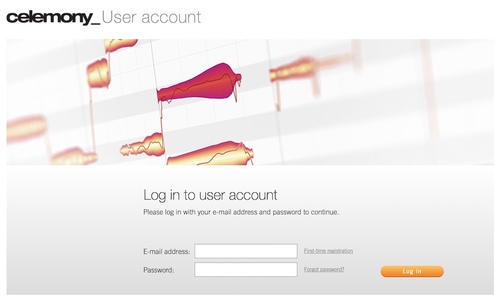
Installation program: When you download the installation program (whether for macOS or Windows) from your user account, it installs the latest versions of the stand-alone implementation of Melodyne as well as of all the various plug-ins.
Activation: In order to run Melodyne on a particular computer, the computer must first be activated for Melodyne. In the course of this process, Melodyne checks the validity of your license data with our server, so an Internet connection is required. You will be prompted to activate Melodyne the first time you launch the program; this only takes a few clicks and you will need your serial number. Please note: Unlike the deactivation process (see below), you can only activate a computer from the computer itself, not from your user account.
Licence, number of activations and workstations: The standard Melodyne license allows you to use Melodyne on one workstation only at a time. However, the license does allow you two activations, the second being an emergency one you can use to activate a substitute computer quickly and easily if, for example, your primary computer breaks down in the middle of a production.
If you wish to use Melodyne simultaneously on two or more workstations, you can purchase further activations, converting your standard license into a team license. If you perform an update or upgrade of your team license for which a charge is made, up to four workstations are included for the same price as a single workstation update or upgrade. For five workstations or more, special purchase discounts and update/upgrade conditions apply. You can find out more about these in our web shop.
What files are installed and where
The installation program you download from your user account installs the stand-alone implementation of Melodyne as well as all the various plug-ins. In the process, the following files are placed in the following locations:
Windows 10
VST 3: C:\Program Files\Common Files\VST3\Celemony\Melodyne.vst3
AAX: C:\Program Files\Common Files\Avid\Audio\Plug-ins\Melodyne.aaxplugin
Melodyne stand-alone: C:\Program Files\Celemony\Melodyne 5\Melodyne.exe
Note for Windows users: For its audio processing, Melodyne needs to be able to store temporary files on your hard disk and read them. For this purpose, a directory called: C:\Users\*\Documents\Celemony\Separations is created. To avoid Windows Defender (virus protection) being invoked every time data is read from this directory – which would slow Melodyne down drastically – an exclusion from Microsoft Defender anti-virus scans is defined for this folder when Melodyne is installed.
macOS 10.12 (and later)
VST 3: Macintosh HD/Library/Audio/Plug-Ins/VST3/Melodyne.vst3
AAX: Macintosh HD/Library/Application Support/Avid/Audio/Plug-Ins/Melodyne.aaxplugin
AU: Macintosh HD/Library/Audio/Plug-Ins/Components/Melodyne.component
Melodyne stand-alone: Macintosh HD/Applications/Melodyne 5/Melodyne.app
Your user account
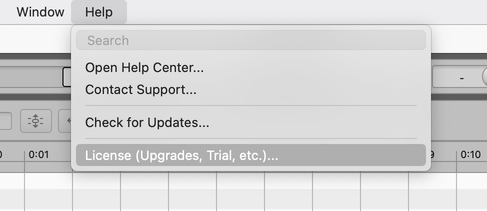
You can access your user account via the menu of our website, the following link: www.celemony.com/login or by choosing License from Melodyne’s Help menu.
In addition to the latest installation program for your Melodyne and your newsletter preferences, you will find in your user account various options for managing your license. There is the option, for example, of deactivating an activated computer or of transferring an activation to iLok (except with Melodyne essential or in the case described above of the emergency activation).
Licence options: Deactivate
Any computer that has been activated to run Melodyne can be deactivated. The activation will then be credited to your user account, so that it can be transferred later to a different computer.
This means that if you have no activations left in your user account but wish to use Melodyne on a new computer, you can simply deactivate another computer that is still active, and this will free up an activation to transfer to your new one. You can switch between computers like this as often as you like. The only restriction is the number of computers involved. If you want to switch activations frequently between a fairly large number of computers, we recommend using the iLok USB copy-protection dongle (see next section).
To deactivate a computer: Log in to your user account via our website or by choosing “License” from Melodyne’s Help menu. If you log in via our website, you must click the “License options” button to get to the page with the “Deactivate” option. If you choose “License” from Melodyne’s Help menu, it will take you to this page directly.

Nice to know: The fact that you can deactivate a computer from any other computer (provided you first log in to your user account) is important, as it allows you to retrieve your Melodyne activation from a lost or stolen computer or from one that has broken down. You can only activate a computer, on the other hand, from the computer itself and cannot do it through your user account.
License options: iLok
iLok is a service provided by Pace that we offer as an optional supplement to our computer-based activation system (except in the case of essential, the smallest edition of Melodyne).
The iLok USB copy-protection dongle is popular because it can store many licenses and be used on different computers. So it allows you to take your Melodyne activation “on the road” with you if you are constantly moving from one computer to the next and want to use Melodyne on each computer in turn.
Pace offers a variety of license-protection solutions. For technical reasons, we only support one of these i.e. activation by means of an iLok USB dongle, which is available from dealers for around 50 US dollars. The two other varieties (computer-based iLok activation and activation via the iLok Cloud) are not supported by Melodyne.
If you wish to use iLok, you can transfer your Melodyne activation to your iLok account. Your second Melodyne activation is reserved for our own computer-based activation, as an emergency solution, so to speak, if your iLok is not to hand when needed. Additional activations that you may have purchased for your Melodyne license can also be transferred to iLok. Please note that a Melodyne activation that has been transferred to an iLok account cannot be retrieved. So before transferring an activation, you should make sure you really can, and do wish to, use an iLok USB copy-protection dongle to activate Melodyne.
Checking for updates
Each time you launch Melodyne, it automatically checks to see whether a newer and better version of the program is available for download. If a new version is available, a page giving you details of it will open in your browser and from this you can download the new version.

If you open the “Check for Updates” page of Melodyne’s “Preferences” dialog, you can opt, if you prefer, to check for updates manually (which is done by clicking the “Check Now” button) rather than have Melodyne do this for you automatically at program launch. We recommend you to leave the default setting (“Automatically”) so that you never miss an important update.
Selling your license
Naturally it is possible to sell your Melodyne, but to do so you need to contact our support. Since the person you sell it to will require their own user account with their own access data, we will have to remove your serial number from your user account and also cancel any activations you may have transferred to iLok. Only then can the license be transferred to the purchaser.
Please note : Resale of a Melodyne license purchased by credit card from our web shop is not possible within three months of the date of purchase. This is to prevent possible credit card fraud.