Multitrack editing
-
Editing multiple tracks simultaneously– Display and edit as many tracks as you like simultaneously, so each note can be seen in context.

In Melodyne studio, you can work with multiple tracks – in both the stand-alone and plug-in implementations. You can move from track to track with the utmost ease, and even see and edit simultaneously notes belonging to different tracks.
Multi-tracking in Melodyne
In Melodyne, multi-tracking has a particular meaning, because here you are working not simply with audio files but with notes. For this reason, it is in the Note Editor that Melodyne’s multi-tracking comes into its own.
Consider the case where you have one track containing vocals and a second track with a guitar accompaniment. As soon as you switch the vocal track to edit mode, the notes of which it is composed appear in the Note Editor. Now, if you switch the guitar track to reference mode, its notes, too, are displayed in the Note Editor. The guitar blobs in this case are gray and can neither be selected nor edited. They are simply displayed for the purpose of orientation in the background to the vocal notes. This makes following the melody child’s play.
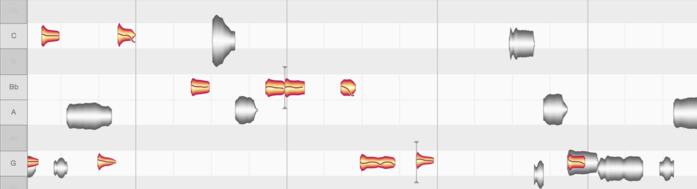
What happens if, while you are editing the vocal track, you notice something on the guitar track that you would like to alter? No problem. Just switch the guitar track to edit mode or double-click one of the gray blobs and immediately the two tracks will swap roles: it will be the guitar blobs that are colored and capable of being edited while the vocal blobs are displayed in gray in the background.
And you can change tracks on the fly like this while working with any number of reference tracks. This makes it very easy for you to edit your audio material in the desired context not only acoustically but also visually. In this, you are supported by intelligent monitoring that allows you to control the volume ratios between the edited track, the reference tracks and all other tracks. Whenever you break off editing one track to edit another, the volume mix adjusts automatically.
But these are by no means all Melodyne’s multi-tracking capabilities: If you wish, you can even switch several tracks to edit mode at the same time, selecting, editing, deleting and copying notes across tracks. This is the case in both the stand-alone and plug-in implementations of Melodyne.
In the following sections, we will set out in detail the concepts underlying multi-tracking in Melodyne and show how to take full advantage of the possibilities it affords.
Differences between the stand-alone and plug-in implementations
When Melodyne is running as a stand-alone application, multiple tracks are displayed in much the same way as in most DAWs: There is a list of track headers in the left-hand pane, with the audio files belonging to each track to the right of them.
In the plug-in implementation of Melodyne, multi-tracking is implemented as a collaboration between the DAW and the various instances of Melodyne. There, too, there is a list of headers on the left. In it, you will see which instance of the Melodyne plug-in is currently open, as well as any others inserted in the tracks of the current project. The idea behind this is to allow you to work at all times in one Melodyne plug-in window only, whilst being able to see and edit the contents of all instances.
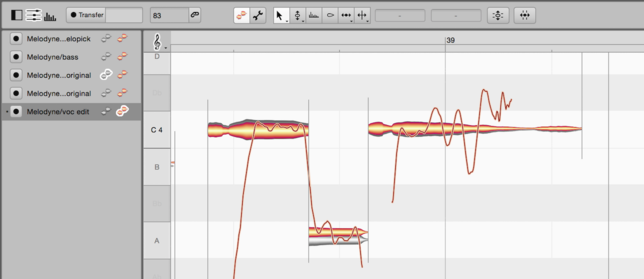
In the plug-in, there is no track pane containing audio material, since the audio material is already present on the tracks of the DAW. All you see, then, is the list of instances and the Note Editor.
The track headers
In the stand-alone implementation: Each track header displays the name of the track and a volume fader along with mute, solo and record enable buttons. The solo function is only ever active in the track whose solo button was clicked most recently. Hold down the [Command] key to solo multiple tracks. You can rename the track via the Track menu, the context menu in the track header pane, or the Track Inspector, which is described in the next section.
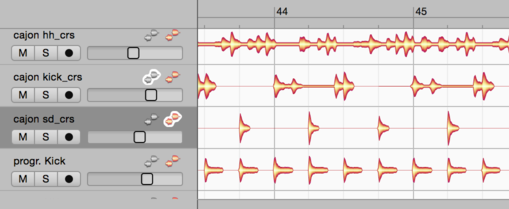
The colored blob icon in the track header is the edit button, which causes the notes to be displayed in the Note Editor. Double-clicking on the contents of a track in the track pane has the same effect. If you click the edit button or double-click in the track region of another track, its notes will replace those of the first track in the Note Editor.
If you hold down the [Command] key now and click on the edit button of another track, the notes of this track too will be displayed as colored blobs in the Note Editor. You will then be able, if you wish, to select and edit the notes of both tracks simultaneously. Proceed in the same way to add the contents of further tracks to the Note Editor. Clicking on an edit button that it is already active removes the contents of the respective track from the Note Editor.
The gray blob icon in the header is the reference button that causes the notes of a track to be displayed in the Note Editor for reference purposes only. The resulting gray blobs can neither be selected nor edited. They are there in this case solely for purposes of orientation– for instance, to facilitate adjustments in pitch or timing. By clicking on further reference buttons, you can add the contents of further tracks to the Note Editor – again, purely for reference purposes – and remove them in the same way.
If you switch a reference track to edit mode – either by clicking its edit button in the track header or by double-clicking one of the gray blobs currently displayed for reference – the gray track will turn orange and the track that was previously orange, gray. Putting it another way: the two tracks will swap roles.
Right-clicking in the header opens a context menu offering the same commands as the main Track menu.
You can change the order in which tracks appear by dragging the track headers upwards or downwards as desired.
In the plug-in: You see a header for every instance of Melodyne that you have opened in your project. There are no mute or solo buttons and no volume fader in the header, as these functions are already provided by your DAW. Instead you will see a Transfer button for every instance, and you can transfer-enable as many instances as you like swiftly from a single plug-in window.
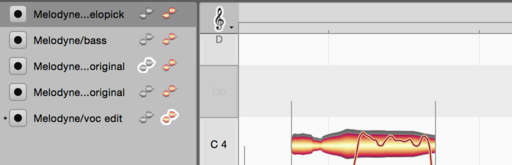
The edit and reference buttons work in exactly the same way as in the stand-alone implementation and determine which contents in the Note Editor are available for editing and which displayed purely for reference. You can switch freely between the contents of the instances and, as in the stand-alone implementation, edit the contents of multiple instances simultaneously – e. g. by selecting and copying across tracks. All the time you can be working in the same Melodyne window; there is no need to switch to the window of another instance or open a second window. A small star on the left near the track title shows you, for the purpose of orientation, to which Melodyne instance the window in which you are working at any given moment belongs.
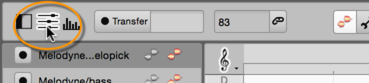
To leave more room for the info pane or Note Editor, you can hide the header pane in the plug-in by clicking the corresponding symbol, and show it again in the same way.
In the stand-alone implementation and with certain DAWs, you can rename tracks by right-clicking on the track header and choosing Rename Track from the context menu.
You will find this option grayed out, however, if your DAW is one that passes on track names to Melodyne, as the correct name will then already be displayed in the track header.
Similarly, with certain DAWS, as in the stand-alone implementation, you can change the order in which the tracks are displayed by dragging the track headers upwards or downwards.
This option, again, is grayed out if your DAW has passed on to Melodyne the order of tracks, as they will then already be displayed in the correct order.
The Editing Mix Fader
When you are editing the notes of several tracks simultaneously in the Note Editor, the Editing Mix Fader is of great assistance. Our intention here was to provide you with the acoustic equivalent of focusing visually on particular blobs: when you are editing a track, you want to be able to concentrate entirely upon that track and not be distracted by others. Visually, that is easy to accomplish: You simply select one or two tracks to edit, show perhaps two or three others tracks in the Note Editor for reference, and hide the rest.
Acoustically, a similar focus is difficult to achieve. Naturally, you could solo the tracks being edited, but then you would lose the very reference that could best help you assess the intonation and timing of the tracks being edited. Ideally in this situation you would be able to employ an alternative mix: the track being edited would be the loudest; the tracks shown as reference would be somewhat quieter, and other tracks, quieter still or completely inaudible. You could accomplish this, of course, with the volume controls of the individual tracks, but the Editing Mix Fader makes it far easier.
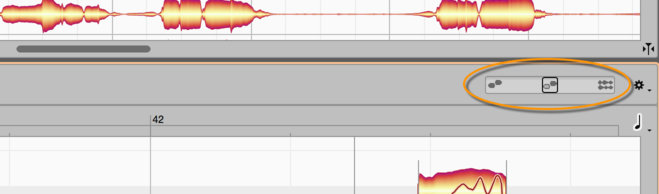
If you move the Editing Mix Fader all the way to the left, you will hear only the track or tracks currently activated for editing in the Note Editor – in other words, the ones with the orange blobs. As you move the fader button gradually towards the center, the gray blobs displayed for reference will gradually become louder, until at the center position the colored and gray blobs will be equally loud. As you now move the button from the center position towards the right, the remaining tracks – i. e. those included in the arrangement but not displayed in the Note Editor – will gradually fade in.
In this way, you can quickly and easily arrive at the ideal acoustic balance between the notes displayed for editing, those displayed for reference, and the rest of the arrangement.
Please note that the soloing and muting of tracks also effects the mix: Tracks that are displayed for reference or editing in the Note Editor but switched to mute (either directly or because another track has been soloed) are nonetheless audible when the Editing Mix Fader is between the extreme left and the center of its range. However, as the button is moved from the center towards the extreme right of its range (causing tracks not displayed in the Note Editor to become audible), the tracks switched to mute are faded out, so the soloing of tracks once again functions normally.
As soon as you shift the focus from the Note Editor to the track pane by clicking in the latter, you will hear the entire arrangement once again; this is equivalent to the rightmost setting of the Editing Mix Fader. If you then click a further time in the Note Editor, the volume ratios will once again be determined by the Editing Mix Fader.
In the plug-in, the fader works on the same principle but with one small difference; If you start the DAW playback, the balance between all the tracks will be determined exclusively by the DAW’s own mixer. The Editing Mix Fader only intervenes when the DAW is stopped and you start local playback in Melodyne.
In this case, again, with the button hard left, only the colored blobs will be heard, the gray ones fading in gradually as you move towards the center, and the remaining tracks entering and becoming gradually louder as the button moves ever further to the right. The term ‘remaining tracks’ here, however, includes only those tracks the contents of which have been transferred to Melodyne. To hear literally all the tracks, unless all have been transferred, you must start the playback from within DAW.
The Editing Mix Fader is only operative when the focus is in the Note Editor – i. e. when the Note Editor is the pane clicked most recently. The pane with focus at any given moment is the one delineated by a thin orange frame.
Copying between documents, tracks and instances
You can copy notes in Melodyne freely between documents, tracks and instances. To copy notes from a track in the stand-alone implementation of Melodyne or an instance of the plug-in to another track or instance respectively, proceed as follows:
- Select the desired notes and choose Copy.
- Select the destination track or instance respectively by clicking its header.
- Position the playback cursor by clicking in the Time Ruler and choose Paste.
To copy notes in the stand-alone implementation from one project to another, proceed as follows:
- Select the desired notes and choose Copy.
- Switch to the destination project and select the desired track e. g. by clicking in its track header.
- Position the cursor by clicking in the Time Ruler and choose Paste.
You will find further information about copying in the tour entitled “Copying notes”.
"Spread Unison Tracks"
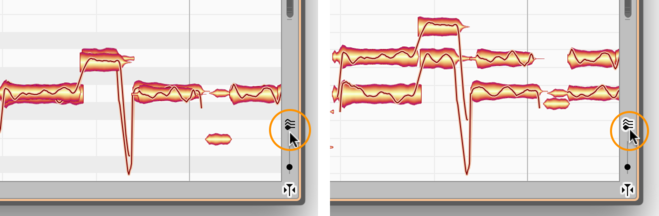
When you are displaying several tracks simultaneously in the Note Editor, before long you may find certain notes overlapping, making it more difficult to see and edit the material. The switch shown here, which you will find near the bottom right-hand corner of the Note Editor, can be of assistance in such cases. What it does is separate and spread vertically the various tracks shown in the Note Editor – causing them to fan out, in other words – which makes it easier to see and select notes of the same pitch on different tracks. This obviously has no effect upon the actual pitch of the notes in question; only upon the way they are displayed. Since the Pitch Ruler provides only an approximate guide to the pitch of the notes when the tracks are fanned out in this way, the grey and white stripes in the background of the Note Editor (imitating the keyboard of a piano) disappear.
The Spread Unison Tracks switch can only be activated when several tracks are being displayed simultaneously in the Note Editor and their notes overlap.