
Updates and upgrades
- • Terminology: major and minor updates, upgrades
- • Checking for updates
- • Information about your edition, version and serial number
- • How updates and upgrades are performed and what the process involves
- • iLok when updating or upgrading
- • Compatibility after an update or upgrade
- • Parallel operation of old and new versions after an update or upgrade
- • Going back to your old Melodyne
- • What upgrades are available and what benefits do they bring
From this tour, you will learn all about updating and upgrading Melodyne. We explain the installation procedure, the Melodyne license and the activation of the program in the tour “Installation and activation”.
Terminology: major and minor updates, upgrades
Minor update: This is a free update containing bug fixes and perhaps new functions of lesser importance. In this case, although the version number is incremented, its first digit remains the same (e.g. from 5.0.3 to 5.1.0).
Major update: This is an update that contains significant new features and is indicated by a change in the first digit of the version number (e.g. from 4.2.1 to 5.0.0). These updates are not free of charge. Exception: Melodyne essential, for which even major updates are free of charge.
Upgrade: This is a change, for which you do have to pay, from a smaller edition of Melodyne to a larger one with more functions (e.g. from Melodyne essential to Melodyne assistant).
An upgrade may also contain a major update. For example, an upgrade from Melodyne 4 editor to Melodyne 5 studio. It is not necessary to update to editor 5 before upgrading to studio 5.
Checking for updates
Each time you launch Melodyne, it checks automatically to see whether a new and improved version is available for download. If this is the case, a page will open in your browser giving you details and allowing you to download the new version.
In Melodyne’s Preferences dialog, you will find a page entitled “Check for Updates” where you can switch from automatic checks (the default) to manual checks triggered by clicking the “Check Now” button. We recommend you to leave the default setting (“Automatically”) unchanged, so you never miss an important update.

Information about your edition, version and serial number
To discover which version of which edition you have, as well as your serial number, choose Melodyne > “About Melodyne” from the main menu.
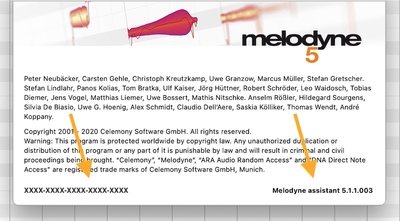
The name of your edition and your serial number are also displayed in your user account. There you will also see which basic version you have (i.e. the first digit of your version number: 4, 5 etc.) but not which specific update is currently installed on your computer (e.g. 5.1.0).

How updates and upgrades are performed and what the process involves
When you are notified by Melodyne’s Check for Updates function or by newsletter that an update for your Melodyne is available, you will always be provided with a download link for the corresponding installation program. If you learn of an update in some other way or if you have purchased an upgrade, you will find the installation program in your user account.
Every update or upgrade requires you to install the latest version of Melodyne. In the case of a free-of-charge minor update, that’s all there is to it. In the case of a major update or an upgrade, on the other hand, you will be given a new license and at the same time your old one will expire. This also means that your old serial number will be replaced by a new one. So Melodyne may also need to be reactivated after the update or upgrade.
When you are reactivating the program after a major update or an upgrade, your old activations will no longer count, because along with your new license you will receive new activations.
A tip about updates: If you are running Melodyne on more than one computer, a major update is liable to involve many changes to the program, some of which may also affect the sound. For this reason, you will probably not want to update Melodyne on the production computer until the projects you are working on there are complete, but you may still want to try out the new version on your laptop. This is not a problem: if you buy an update from Melodyne 4 to Melodyne 5, your activations for Melodyne 4 will not be removed immediately but only after the installation of Melodyne 5. You can update Melodyne on one of the computers and continue to run Melodyne 4 on the other for a transitional period.
iLok when updating or upgrading
With iLok, too, a distinction has to be made between (on the one hand) a minor update and (on the other) a major update or an upgrade. In the case of a minor update, you don’t need to do anything; your iLok USB dongle will continue to work.
With a major update or an upgrade, however, you receive a new license, so in both these cases your iLok license must be updated. If you are using iLok, we transfer your new licence automatically to your iLok account, where it replaces the old one.
At this point, action from you is required: To run your new Melodyne, you must then transfer your new Melodyne license from your iLok account to your iLok USB dongle.
Compatibility after an update or upgrade
An update will give you new features and possibilities, but will remain compatible with your existing projects. Please note, however, that we are talking here about upward compatibility only: You will be able to open projects saved by your old version of Melodyne in your new one, but you will not be able to open projects saved with your new version of Melodyne in your old one.
In the case of massive leaps, however, such as from Version 1 to Version 5, there will naturally be major differences, as the pace of development at Celemony is unrelenting. New processing methods and bug fixes, as well as new and improved functions, all find expression in higher sound quality – or, to put it in neutral terms, acoustic differences. For this reason, you are advised in case of doubt not to perform this type of major update while you are still working on a project.
Different editions of the program are also compatible, provided they have the same version numbers. You can, for instance, open a project created by Melodyne editor Version 5.0.1 in Melodyne essential Version 5.0.1 or even in Melodyne player (a non-activated Melodyne) Version 5.0.1. Everything will sound exactly as it did when it was saved by Melodyne editor, even if some or all of the functions you used to perform the edits in Melodyne editor are not available in Melodyne essential or player.
The reason is that Melodyne editions differ from one another not in the technology they use but in the range of functions they provide. Since Melodyne essential offers fewer functions than Melodyne editor, you will be limited to these when performing any further editing in Melodyne essential of a Melodyne editor project, and no further editing of it at all will be possible using Melodyne player. A wider range of functions, on the other hand, would be available to you if you opened the same editor project in the more powerful Melodyne studio.
Parallel operation of old and new versions after an update or upgrade
This is impossible for technical reasons: DAWs recognize the Melodyne plug-in by its identifier, and this does not change when the product is upgraded or updated. The advantage is that this allows you to update or upgrade Melodyne in the middle of a project and continue working seamlessly. It does mean, however, that you cannot run your old and new versions of Melodyne in parallel inside the same DAW, as they would need to use the same identifier and no DAW will allow the same identifier to be used more than once.
Going back to your old Melodyne
After a major update or upgrade, it is usually not possible to go back to the version or edition of Melodyne you were using previously. However, if serious problems or incompatibilities arise in your system after an update or upgrade, please contact our support. We’re sure to find a solution.
What upgrades are available and what benefits do they bring
You can upgrade from any edition of Melodyne to any of the larger editions – even directly from the smallest, Melodyne essential, to the largest, Melodyne studio.
You will find an overview of all updates and upgrades in our web shop. Under “More Info...”, you can discover which key functions and features not offered by your current edition the upgrade will bring you.
You will find a table comparing the various editions here.