Additional note separations
After you have identified the often distinctly local problem areas in the notes by listening and examining the pitch curve very carefully, you will want to correct these with the tools. If, for example, the pitch curve fluctuates too strongly, you can curb this tendency with the Pitch Modulation Tool. However this tool (like all the tools) operates upon the entire note, so it can happen that, whilst you may bring the actual problem area under control, you end up making everything around it in the rest of the note worse.
In such cases, it is advisable to split the notes affected into smaller blobs with the Note Separation Tool in order to localize the effects of your editing.
Until you split this note, Melodyne had assigned it to a position almost halfway between E and F. It did that based upon its analysis of the average pitch of this one, long note. After the split, Melodyne conducts a fresh analysis of each of the two newly created, now shorter, notes. As you can see at once from the illustration, the second half has hit the F pretty squarely, but the first half is way too low. So low, in fact, that you can see clearly that it was this that was dragging down the pitch center of the original long note.
The fresh analysis conducted after the split has (as yet) had no audible effect; it has simply led to the display being updated. And with the help of this new display, you can see at once what has to be done: the first half must be shifted upwards quite a long way. You do this in the next step:
The placing of additional separations is often a crucial preparation for effective tuning. You can perform these separations in normal Edit Mode; this makes sense when you are only concerned with one or two places. If, however, your vocal track contains many small problem areas of this type, you do better to switch to Note Assignment Mode where you can save time:
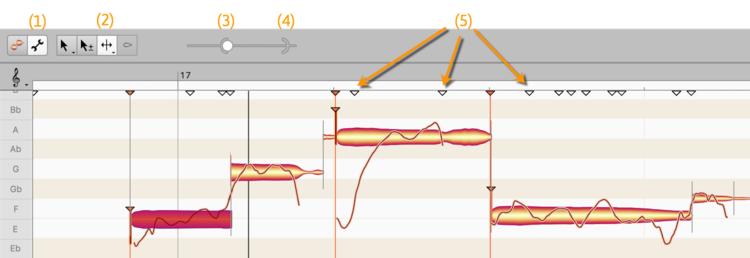
Select in Note Assignment Mode (1) the Note Separation Tool (2). A two-part slider appears with the right part of which (4) you can cause white triangles to appear beneath the ruler (5). These represent what could be described as hints as to places where it might make sense to place separations. Now move the left part of the slider (3) also to the right, to fill an increasing number of these white triangles with red:
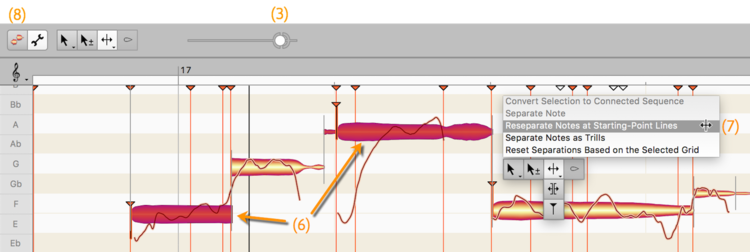
In the illustration, we have moved the slider (3) to the right until all the vocal problem areas, fore and aft, are marked with red triangles.
Now we select all the notes – or, at least, those blobs that we want to split (6) – and execute the right-click command (7) “Reseparate Notes at Starting-Point Lines”. Finally we switch back to normal Edit Mode (8). The recording now looks like this – and offers you localized access to the critical areas:
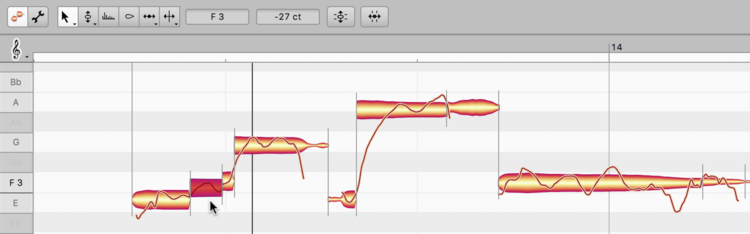
With the method described, you save yourself time primarily when you have selected a large number of notes and then perform a correspondingly large number of cuts in one go with a right-click action.
In rare cases, you will want to insert additional separations guided by acoustic monitoring – because, say, your reading of the pitch curve leaves room for doubt and you would rather orient your work through scrubbing:
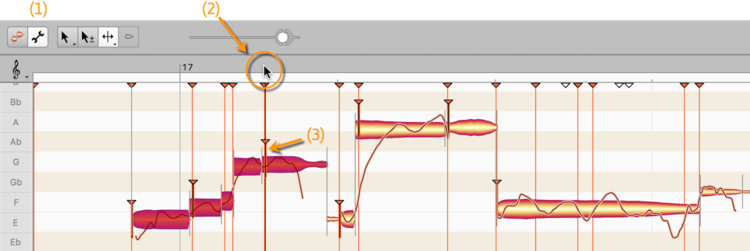
This is also performed in Note Assignment Mode (1). First you select the notes in question and then scrub in the Time Ruler (2) until you have found the right place. Then you insert the additional note separation using the key combination Cmd-Alt-A.
(If you wish, you can assign a keyboard shortcut of your own choosing to the corresponding command “Paste Attack at Cursor and Split Note” from the Preferences property sheet under Shortcuts > Note Assignment.)